
Logging Into Synology Drive
Learn how to efficiently navigate to your saved folders in Synology Drive by using the browser. This guide helps you streamline your workflow by showing you how to log in and access your files.
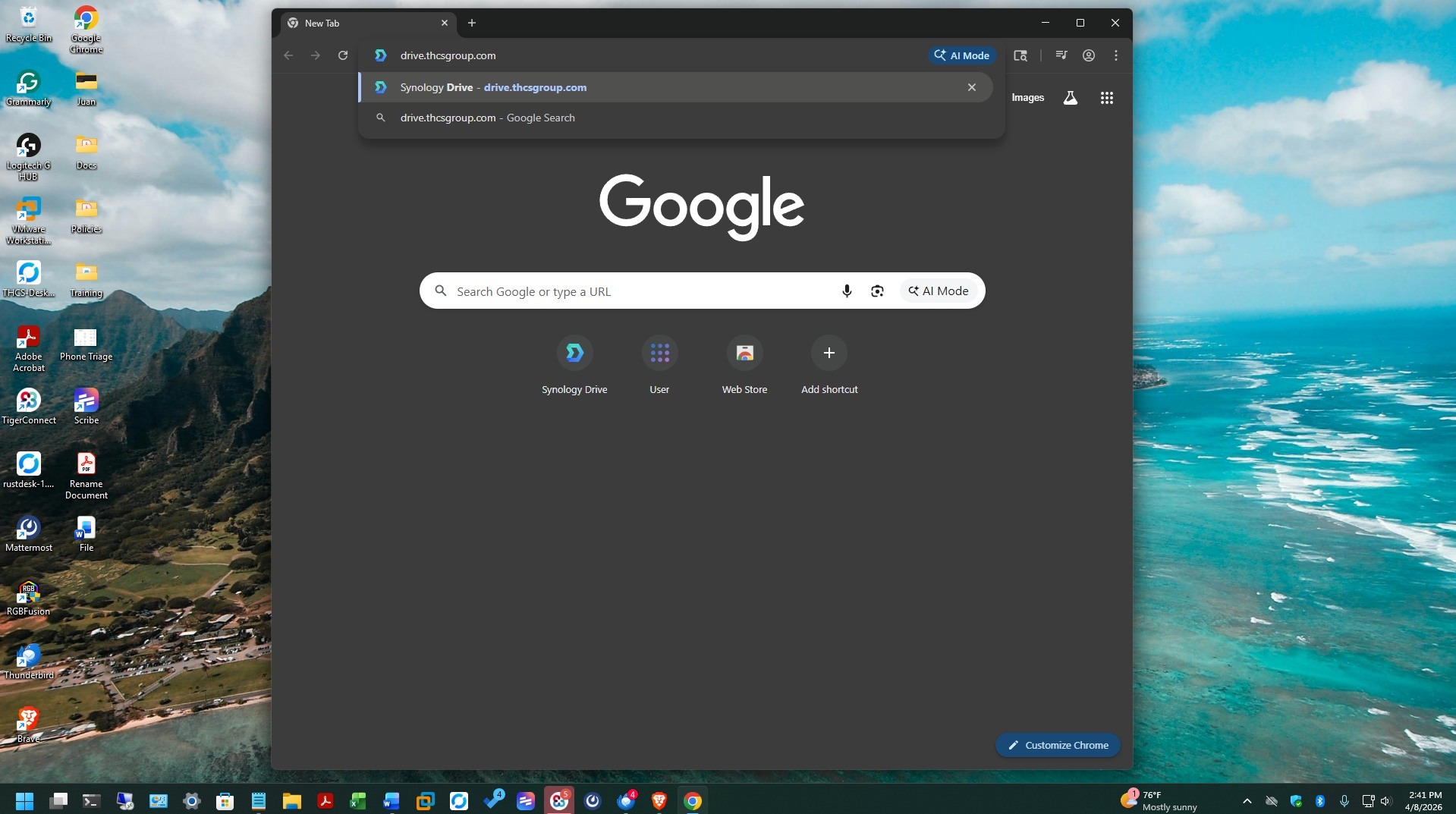
1. Open the browser by double-clicking on the icon

2. Click "Address and search bar" and type "drive.thcsgroup.com and press "Enter" or Return on your keyboard
Understanding The "Domain" Username Format
Alert: # [[Understanding the "Domain" Username Format]]
The "Domain" username is constructed using the initial of your first name, followed by your full last name. This format ensures a standardized naming convention across the organization.
Example Username:
For instance, if your name is John Smith, your domain username would be "jsmith". When you log in to your computer at the beginning of your workday, you are required to enter your username. This username is the same one you use when accessing Synology Drive.
Example Password:
When you log in to your computer at the beginning of your workday, you are required to enter a password. This password is the same one you use for accessing Synology Drive.
Please note that your password is case sensitive. This means that uppercase and lowercase letters must be entered exactly as they appear in your password. For example, "Password" is different from "password" or "PASSword." Be careful to enter the correct capitalization each time you log in.
Email Address Association
Your domain username is also used as part of your company email address. For John Smith, the email would be: jsmith@thcsgroup.com
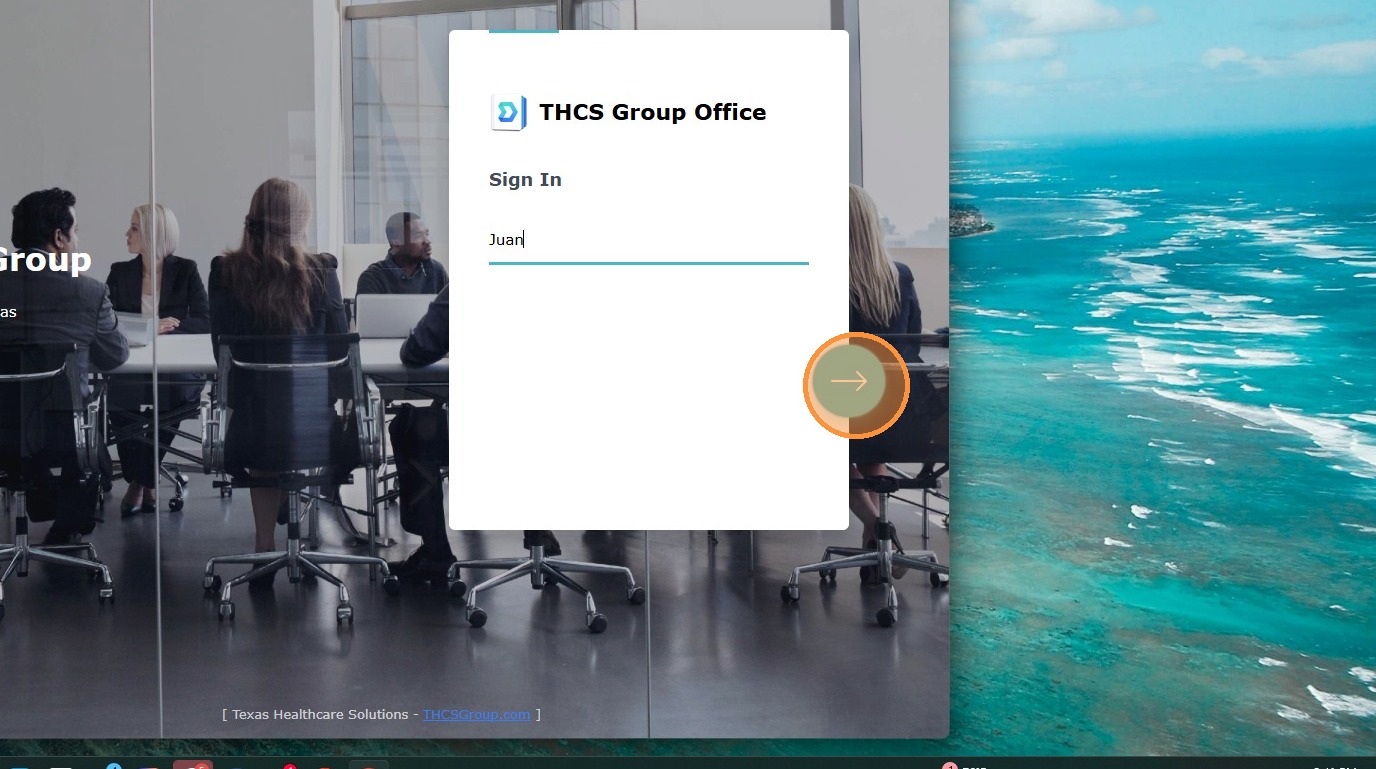
3. Click "Sign In", and type your "Domain" username, then click the arrow
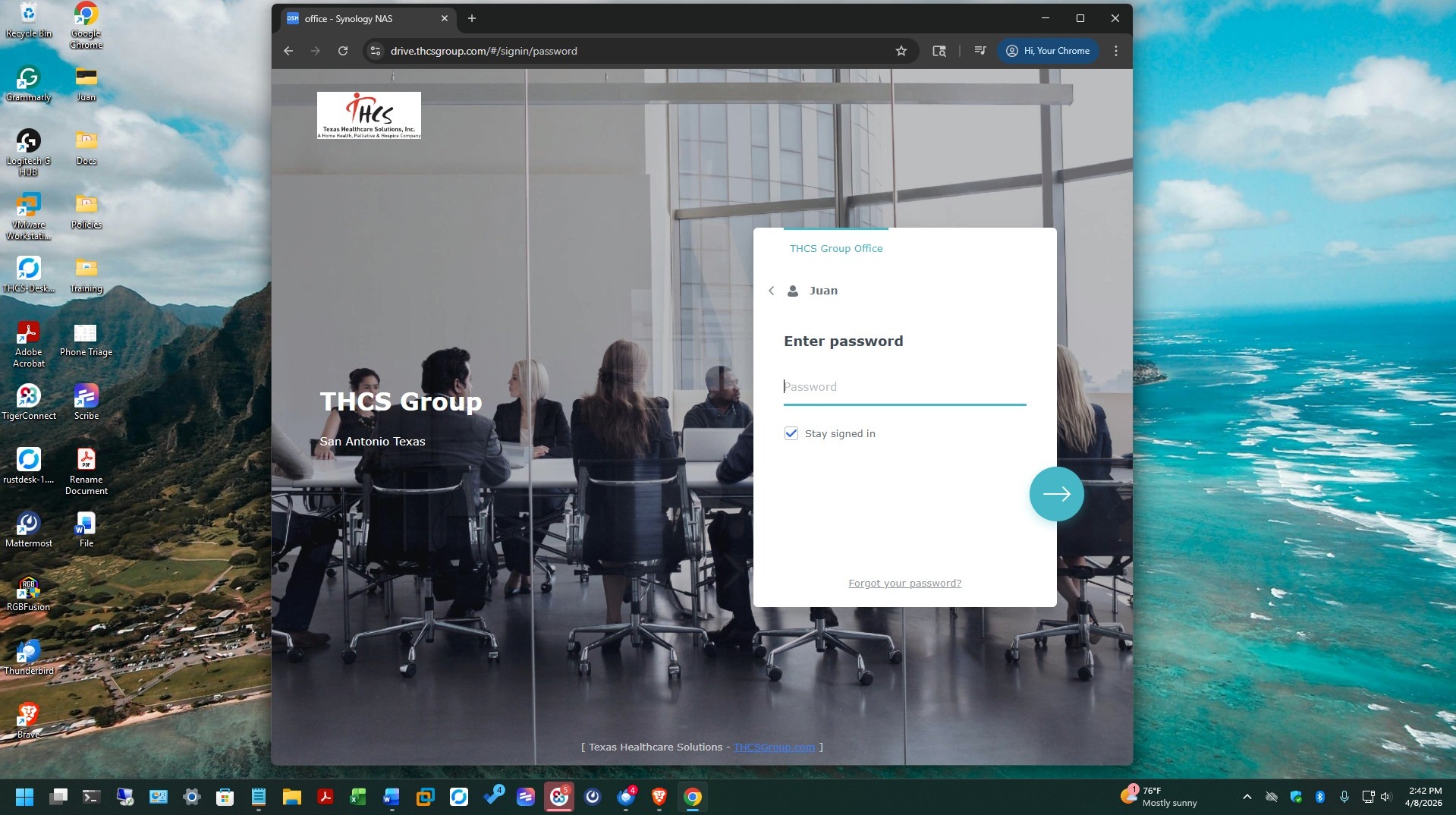
4. Type your password, then press "Enter" or Return on your keyboard
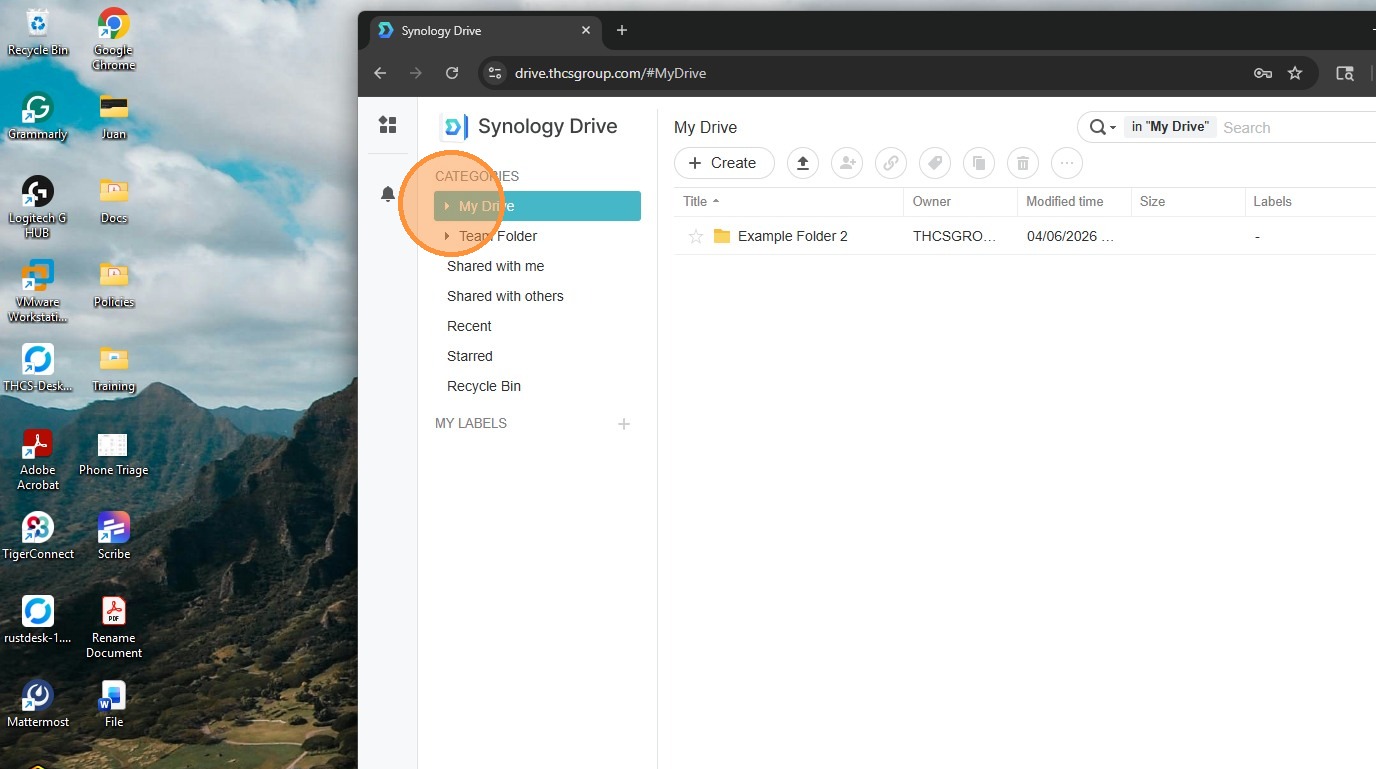
5. You are now logged into Synology Drive. With your credentials verified, you have full access to your documents stored within the platform.
From this point, you can view, manage, and organize all your files securely and efficiently using Synology Drive’s features
Add a comment
Please log in or register to submit a comment.